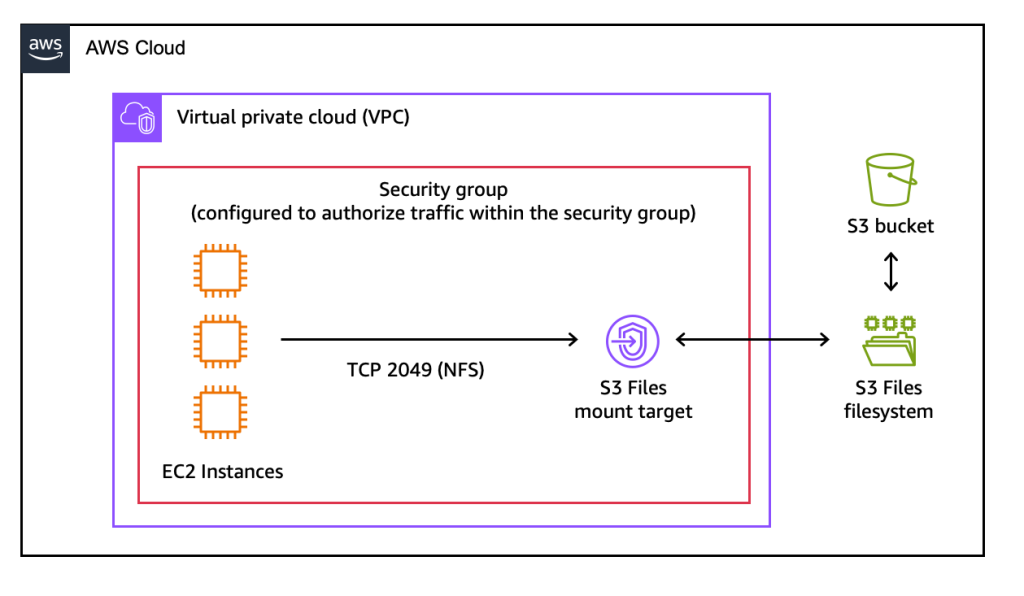
AWS S3 Files revolutionizes how you interact with S3, making buckets accessible as high-performance POSIX file systems. This means simplified migrations for legacy apps, enhanced data sharing, and superior performance with S3's renowned scalability and cost-efficiency. Discover how to leverage this game-changer for your cloud architecture.
Need something like this for your business?
We build your landing page with proper SEO, modern design, and everything included from $111/month.
In the evolving landscape of cloud infrastructure, Amazon S3 has long stood as the gold standard for scalable, durable, and cost-effective object storage. Yet, for all its power, the object storage paradigm presents a unique challenge for applications designed to interact with traditional file systems. This impedance mismatch often leads to complex data access layers, performance bottlenecks, or costly migrations to other storage services. But what if you could have the best of both worlds? What if your S3 buckets could behave like a high-performance, POSIX-compliant file system?
Enter AWS S3 Files. This groundbreaking announcement from AWS fundamentally changes how businesses can leverage their S3 data, bridging the gap between object storage's scale and durability and the interactive, low-latency requirements of file-based applications. For CTOs, tech leads, and startup founders, this isn't just another service; it's a strategic enabler that can unlock new efficiencies, simplify architecture, and significantly improve the performance of data-intensive workloads.
What Changed: Bridging the Gap Between Object Storage and File Systems
AWS S3 Files transforms how your compute resources interact with S3. Traditionally, applications needing file system semantics would use services like Amazon EFS or Amazon FSx, or build complex custom layers on top of S3's object API. While effective, these approaches either came with higher costs for raw storage, regional limitations, or the overhead of bespoke development.
With AWS S3 Files, S3 buckets can now be mounted directly as high-performance file systems on AWS compute resources such as EC2 instances, ECS tasks, and EKS pods. The core innovation lies in its ability to offer near-native file system performance, boasting ~1ms latencies for common file operations. This is achieved through an optimized client and underlying AWS infrastructure that intelligently manages data access and caching, ensuring that your applications perceive S3 as a local, highly responsive file system.
Key technical highlights include:
- POSIX Compliance: Supports standard file system operations like create, read, write, append, truncate, rename, list directories, and manage permissions.
- High Performance: Achieves sub-millisecond latencies for frequently accessed data, dramatically improving interactive application responsiveness.
- Seamless Data Sharing: Multiple compute instances can mount the same S3 Files system, enabling simplified data sharing without complex coordination.
- Cost-Effectiveness: Leverages the unparalleled cost efficiency and durability of Amazon S3 for underlying data storage.
- Scalability: Inherits the massive scalability of S3, allowing you to store and access petabytes of data without managing file system capacity.
This means you no longer need to compromise between the benefits of object storage (cost, scale, durability) and the necessity of interactive file capabilities. S3 Files is designed to make data access intuitive and performant for a vast array of applications, from legacy systems to modern AI/ML workloads.
Step-by-Step Tutorial: Mounting and Using AWS S3 Files
Let's walk through how to set up and interact with AWS S3 Files on an Amazon EC2 instance. For this tutorial, we'll assume you have an active AWS account, a configured S3 bucket, and an EC2 instance running Amazon Linux 2023.
Prerequisites:
- An AWS Account with administrative access or an IAM user with permissions to create and manage EC2 instances, S3 buckets, and S3 Files resources.
- An existing Amazon S3 bucket (e.g.,
your-unique-s3-bucket-name) in your desired AWS region (e.g.,us-east-1). - An Amazon EC2 instance (e.g.,
t3.medium) running Amazon Linux 2023, with appropriate security group rules to allow SSH access. Ensure the EC2 instance's IAM role has permissions to access your S3 bucket (s3:GetObject,s3:PutObject,s3:ListBucket) and S3 Files operations (s3-files:*).
Installation and Configuration:
First, SSH into your EC2 instance. We'll install the necessary S3 Files client. For this example, we'll assume a dedicated client utility is available through the package manager.
# Update your system packages
sudo yum update -y

# Install the AWS S3 Files client (hypothetical package name for demonstration)
sudo yum install -y aws-s3-files-client

# Verify the installation
s3-files --version
Next, we need to create a mount point on your EC2 instance where the S3 bucket will be accessible as a file system, and then perform the mount operation.
# Create a directory to serve as the mount point
sudo mkdir /mnt/s3data

# Mount your S3 bucket using the s3-files command
# Replace 'your-unique-s3-bucket-name' with your actual S3 bucket name
# Replace 'us-east-1' with your bucket's region
# Ensure your EC2 instance's IAM role has the necessary S3 and S3-Files permissions
sudo s3-files mount s3://your-unique-s3-bucket-name /mnt/s3data --region us-east-1

# Verify the mount
df -h /mnt/s3data
If the command executes successfully, you should see your S3 Filesystem listed in the df -h output, typically showing a large capacity reflecting the underlying S3 bucket. Your S3 bucket is now accessible via standard file system operations at /mnt/s3data.
Interacting with S3 Files using Python:
Now that the S3 bucket is mounted, you can interact with it using standard file system commands and programming language APIs. Let's demonstrate common file operations using a Python script.
import os

mount_path = "/mnt/s3data"
file_name = "demo_file.txt"
file_path = os.path.join(mount_path, file_name)
directory_name = "my_directory"
directory_path = os.path.join(mount_path, directory_name)

# --- File Operations ---

# 1. Create and write to a new file
print(f"[INFO] Creating and writing to: {file_path}")
with open(file_path, "w") as f:
    f.write("Hello from AWS S3 Files!\n")
    f.write("This is a demonstration of POSIX access.\n")
print("[SUCCESS] File written.")

# 2. Read the content of the file
print(f"\n[INFO] Reading from: {file_path}")
with open(file_path, "r") as f:
    content = f.read()
    print("Content of demo_file.txt:")
    print(content)
print("[SUCCESS] File read.")

# 3. Append content to the file
print(f"\n[INFO] Appending to: {file_path}")
with open(file_path, "a") as f:
    f.write("Appending a new line with S3 Files.\n")
print("[SUCCESS] Content appended.")

# 4. Read again to see appended content
print(f"\n[INFO] Reading updated file: {file_path}")
with open(file_path, "r") as f:
    content = f.read()
    print("Updated content of demo_file.txt:")
    print(content)
print("[SUCCESS] Updated file read.")

# --- Directory Operations ---

# 5. Create a new directory
print(f"\n[INFO] Creating directory: {directory_path}")
os.makedirs(directory_path, exist_ok=True)
print("[SUCCESS] Directory created.")

# 6. List contents of the mount point
print(f"\n[INFO] Listing contents of {mount_path}:")
for item in os.listdir(mount_path):
    print(f"  - {item}")
print("[SUCCESS] Directory listed.")

# --- Cleanup (Optional) ---
# Uncomment the lines below if you want to remove the created files/directories
# print(f"\n[INFO] Cleaning up: {file_path} and {directory_path}")
# os.remove(file_path)
# os.rmdir(directory_path) # Only works if the directory is empty
# print("[SUCCESS] Cleanup complete.")
Save this script as s3_files_demo.py on your EC2 instance and run it using python3 s3_files_demo.py. You will observe standard file system output, demonstrating the seamless integration of S3 Files.
Common Gotchas and Troubleshooting:
- IAM Permissions: Ensure your EC2 instance's IAM role has both
s3:*(for your specific bucket) ands3-files:*permissions. This is the most common issue. - Region Mismatch: The
--regionspecified during mounting must match the region of your S3 bucket. - Client Version: Keep your
aws-s3-files-clientupdated to ensure compatibility and access to the latest features and performance improvements. - Unmounting: To safely unmount, use
sudo umount /mnt/s3data. - Concurrency & Consistency: While S3 Files provides POSIX semantics, remember the underlying storage is S3, which has eventual consistency for some operations. For single-instance writes, this is generally fine, but complex distributed writes might still require careful application design.
Real-World Use Case: Modernizing Legacy Applications with High-Performance Data Access
Imagine a scenario where a legacy on-premises application relies heavily on a shared Network File System (NFS) to store and process large volumes of data – perhaps for batch processing, analytics, or media rendering. Migrating this application to the cloud traditionally presents a dilemma: refactor the application to use S3's object API (costly, time-consuming), or deploy a managed file system like EFS or FSx (potentially higher operational overhead and per-GB cost compared to S3).
With AWS S3 Files, this migration becomes dramatically simpler and more cost-effective. You can lift-and-shift the legacy application to EC2 instances, mount an S3 bucket via S3 Files, and the application will interact with S3 as if it were a local NFS share. This approach preserves the application's existing file system logic, eliminates the need for extensive refactoring, and immediately benefits from S3's scalability, durability, and cost profile. Data for analytics or AI/ML workloads can be directly stored in S3 and processed by compute clusters (e.g., EKS) that mount the S3 Files system, achieving high-performance access without data duplication or complex synchronization layers. This capability directly translates into faster cloud adoption and a quicker return on investment for modernization initiatives.
Comparison: S3 Files vs. Other AWS Storage Options
AWS offers a rich portfolio of storage services, each optimized for different use cases. Understanding where S3 Files fits can help you make informed architectural decisions:
- Native S3 Object API: Provides the lowest cost and highest scale, but requires applications to be designed around object storage semantics (HTTP PUT/GET). S3 Files abstracts this complexity, offering file system access without refactoring.
- Amazon EFS (Elastic File System): A fully managed NFS file system for EC2. EFS is simpler to set up for general-purpose NFS needs but can have higher per-GB costs and latency for extremely high-throughput or global-scale requirements compared to S3, especially for cold data. S3 Files offers S3's cost benefits with file system access.
- Amazon FSx (File System for Lustre, OpenZFS, NetApp ONTAP, Windows File Server): Specialized, high-performance managed file systems optimized for specific workloads (e.g., HPC with Lustre, enterprise file servers). While offering superior performance for their niche, they often come with higher costs and more management overhead than S3 Files for general-purpose file access to S3 data. S3 Files is ideal when you need S3's scale and cost with strong POSIX semantics, rather than a specialized file system.
S3 Files is not a replacement for these services but rather a powerful complement, particularly when you need to combine the economic and durability advantages of S3 with traditional file system access patterns and low-latency performance on AWS compute.
FAQ
Need help implementing this? Contact We Do IT With AI for expert guidance.
Ready for your professional website?
Modern design, proper SEO, hosting + database + maintenance — all-in from $111/month. We answer on WhatsApp in less than 1 hour.
Original source
aws.amazon.comGet the best tech guides
Tutorials, new tools, and AI trends straight to your inbox. No spam, only valuable content.
You can unsubscribe at any time.

